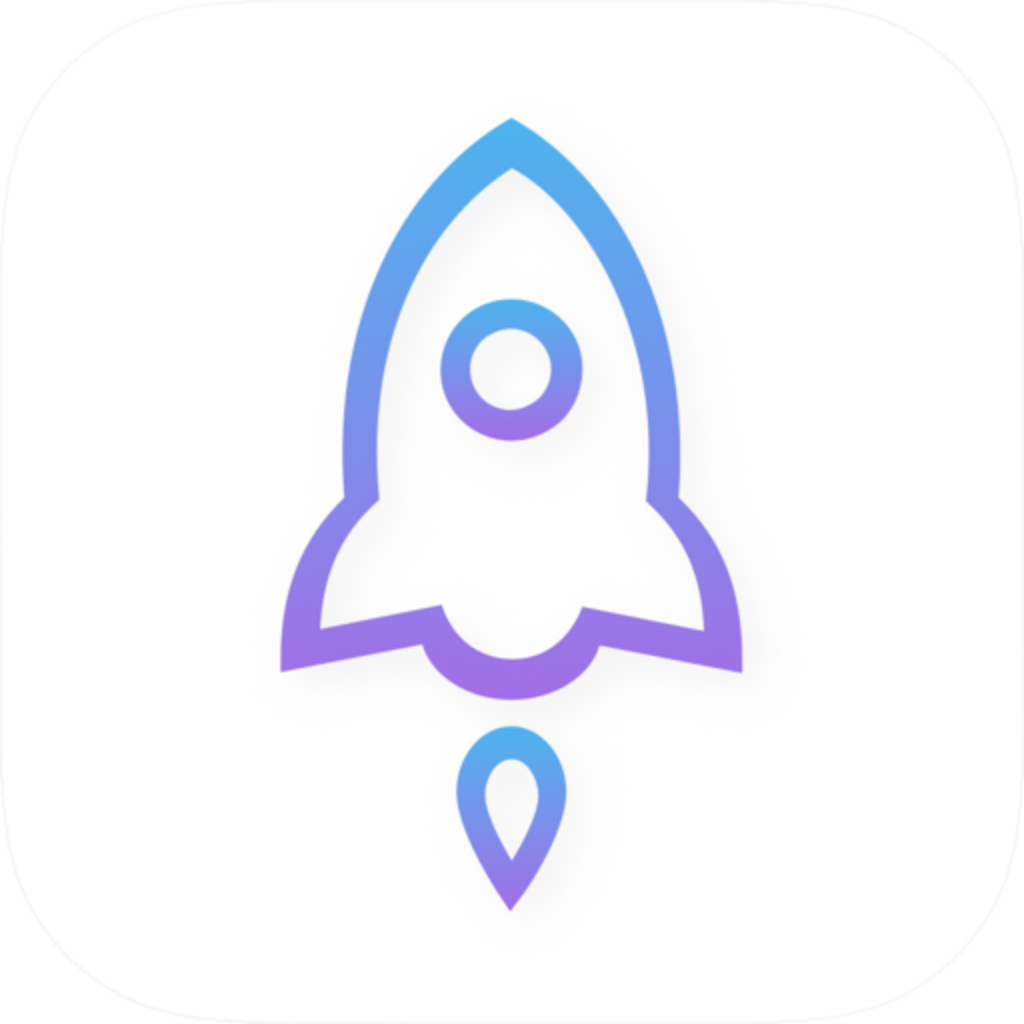
Before buying Shadowrocket, open its App Store product page and verify the developer, Shadow Launch Technology Limited, the white icon with a blue-purple outlined rocket, and app ID 932747118. This guide is for first-time buyers, users reinstalling the app, and anyone unsure about a search result. After verifying the listing, check the price, compatibility, and purchasing account. Don’t rely on search rankings or name similarities when deciding what to buy.
1. Identify the app before buying—not by its search ranking
When you search for Shadowrocket on the App Store, the search term is just a way to find listings; it doesn’t verify an app’s identity. A matching word in the name, a rocket in the icon, or a top position in the results doesn’t prove that it’s the app you’re looking for. Open the product page and check the developer information and product link. Don’t infer details from text that’s cut off in a search result.
Shadowrocket is available exclusively on the App Store as a one-time-purchase commercial app. Before buying, note these three details. They identify the developer, the app’s visual identity, and its App Store listing. The app ID confirms the specific listing you’re viewing; it doesn’t tell you anything about your device’s connection status.
Bottom line: buy only when all three match
If any detail doesn’t match, stop and reopen the correct product page. Don’t treat a similar name, proxy-related wording in the description, or a similar price as a substitute for verification.
2. Where to find the developer, official icon, and app ID
Start by checking the developer’s full name: Shadow Launch Technology Limited. Find the developer information on the product page, and scroll down to the information section to check the provider or seller details if needed. Field labels may vary with the App Store display language. Don’t mistake brand text in an app description for the developer shown by the App Store.
Next, check the official icon. Shadowrocket’s icon is a rocket outlined in blue-purple on a white background. The official icon below is provided for comparison. Compare the background, line color, and overall shape—not just whether the icon depicts a rocket. Use the icon as a supporting check alongside the developer and app ID.
Finally, check the app ID. The product link is https://apps.apple.com/us/app/shadowrocket/id932747118, and id932747118 identifies the specific App Store listing. The region in the link and its readable name are not the app ID. If you open the listing from different places, make sure this numeric identifier matches. A correct URL doesn’t guarantee that your account can make the purchase; check the App Store page for any additional notices.
| What to check | Expected value | How to check |
|---|---|---|
| Developer | Shadow Launch Technology Limited | Open the product page and check the developer and information sections—not just the search preview. |
| Official icon | Rocket outlined in blue-purple on a white background | Compare it with the official icon in this guide; a rocket design alone isn’t enough to confirm a match. |
| App ID | id932747118 | Use the product page’s Share option to copy the link, then check the URL text. |
3. Four checks from search to purchase
These steps focus on the App Store on iPhone and iPad. Button labels may vary by system language and purchase status: a price, a redownload button, and an Open button indicate different states. The button’s appearance alone doesn’t verify an app’s identity. You don’t need to share your connection configuration or subscription details to verify the listing.
-
Open the product page
In the App Store, tap Search, enter the full name Shadowrocket, and open the candidate product page. If you can’t identify the right listing in the search results, first visit this site’s genuine app verification page, then follow its link to the specified App Store product page.
-
Verify the listing
On the product page, check the name Shadowrocket, developer Shadow Launch Technology Limited, and official icon. If anything doesn’t match, go back and search again. Don’t proceed with the purchase.
-
Copy the link
On the product page, tap Share → Copy Link, then paste the URL somewhere you can read it and confirm it contains
id932747118. Only check the product link; don’t paste your own subscription link or account credentials. -
Confirm the purchase
Check the current price, Compatibility details, and any notices on the page. Confirm which Apple Account you’re using for the App Store purchase, then buy or redownload the app. Once the transaction is complete, open the app from the same product page instead of choosing from the search results again.
4. Know the difference between the app, compatibility, and connection setup
Buying the app ≠ buying a connection plan. A Shadowrocket purchase gives you the right to use the app; it doesn’t include a connection service. Connecting later assumes you already have your own service provider and subscription. Verifying the app, purchasing the client, and confirming that a configuration works are separate tasks.
Shadowrocket is primarily used on iPhone and iPad. Compatibility with Mac, Apple TV, and Apple Vision can also be checked in the Compatibility section of the same App Store product page. For system requirements and purchase eligibility across devices, refer to the App Store page. Don’t assume a device meets the app’s requirements just because it can open web pages.
- Before buying: Check device compatibility, the App Store storefront, and payment notices before confirming the transaction. A one-time purchase doesn’t automatically meet every account, region, or device requirement.
- Before reinstalling: Check whether you’re using the same account as when you originally purchased the app, then review your App Store purchases or the product page status. You don’t need to delete the app to troubleshoot.
- Before connecting: Have your own configuration ready, and make sure you’re authorized to use it. Don’t enter App Store order details into the Home connection settings, and don’t share subscription credentials with anyone to verify the app listing.
- If you see an error: First identify whether it’s related to the App Store purchase, app launch, or network connection. For a payment failure, check your account and the App Store notice; changing Global Routing won’t fix it.
5. Recognize the app after installation—connection results don’t verify the listing
When you first open the app, Home, Config, and Settings are used for connection management, configuration files, and app preferences, respectively. The interface can help you follow later tutorials, but it can’t replace checking the App Store listing. Whether a web page opens also doesn’t prove that you bought the correct app. Connection failures may instead involve your existing configuration, local network, or rules.
For example, Home → Global Routing compares three common options in Shadowrocket to help distinguish buying the right app from choosing the right routing setting. Global Routing also includes Scene options; the available choices depend on what the app currently shows. Check the app for its current default rather than assuming every installation uses the same setting.
Config
RecommendedRoutes requests according to the rules in the active configuration. It doesn’t mean that all other requests always go direct; requests that don’t match earlier rules may be handled by a final policy such as FINAL. Recommended for everyday use once you’ve verified your configuration.
Best for: routing traffic by rules in an existing, valid configuration.
Proxy
Routes requests handled by the app through a proxy. You can switch to this temporarily to investigate rule selection, but it won’t fix an incorrect server address or authentication details, and it doesn’t verify the App Store listing.
Best for: temporarily narrowing down rule-related issues with an existing, working configuration.
Direct
Routes requests handled by the app directly. This isn’t a purchase verification or account recovery feature. If connection behavior changes after selecting it, that’s only a clue for troubleshooting the network route.
Best for: checking direct network access when proxy routing isn’t needed.
Settings → On Demand controls when a connection starts automatically based on conditions; it doesn’t complete a purchase or provide a configuration. Check the current setting in the app. While verifying the app or checking a basic connection, leave the existing setting as is and note its state. Once manual connections and your existing configuration work, adjust it to suit your needs.
6. Common questions about searching, redownloading, and purchases
If you run into any of these situations, keep the current product page and error message open, then follow the relevant checks. Don’t keep tapping different search results and trying to pay; that can muddle the app, account, and transaction status and make verification harder.
The name matches exactly. Do I still need to check the app ID?
Yes. Open the product page, check the developer, then use Share → Copy Link to find id932747118 in the URL. The name helps you find a candidate; the app ID identifies the listing. They serve different purposes, so don’t rely on the name or icon alone before paying.
I can’t find Shadowrocket in search. Has its name changed?
A lack of search results doesn’t tell you whether the name has changed. First open the specified listing through this site’s genuine app verification page and check any App Store region or availability notices. Then check the storefront region associated with your purchasing account, content age restrictions on your device, and your account status. Don’t enter false account information to get around a notice.
I bought it before. Why am I seeing a price now?
First verify the app ID. Then check whether the Apple Account you’re using for the App Store is the one you used for the original purchase, and review its purchase history or purchased items. A price button alone doesn’t mean the original transaction is no longer valid. Don’t pay again until you’ve checked your purchase history and the product page status.
The app is installed, but it won’t connect. Did I buy the wrong app?
First verify all three details on the App Store page. If they match, troubleshoot the connection separately: check that the existing configuration in Home is complete, review the current Global Routing setting, and check your local network. Buying the app doesn’t create a working configuration, and changing a routing option won’t fill in missing authentication details.
Once verified, use the same details whenever you reopen the product page: Shadowrocket, Shadow Launch Technology Limited, and id932747118. If you think you bought a different listing, check your App Store purchase history and note the actual app name and transaction details. Then use the transaction support options provided by Apple. Don’t use whether a connection configuration works to determine which app you purchased.