Paid app, one-time purchase, available only on the App Store. See the store listing for current pricing, compatibility, and purchase terms.
Developer: Shadow Launch Technology LimitedApp ID 932747118$2.99 one-time purchase · US store referenceFor iPhone and iPad
This page in the Shadowrocket Handbook explains how to verify, purchase, and install the genuine app. First check your account’s store, then verify the product listing, and finally purchase the app or restore a previous purchase. Buying the app does not buy a connection plan—you’ll need your own subscription or server details.
01 / STOREFRONT
Store & Account Region
Shadowrocket is not available in the mainland China App Store. Whether you can see the app depends first on the country or region associated with the Apple ID used for App Store purchases—not your phone’s current location, device language, or the language of this page. If the product page says the app isn’t available in your region, check your account details. Don’t rely on search results alone to verify the app.
The button on this page links to Shadowrocket’s US App Store listing. The App Store may display store details or availability based on your current account. The storefront path in the link does not change your account’s region or guarantee that you can complete a purchase. Always refer to the store page shown on your device.
Check the account you use for purchases
Open Settings, then tap the Apple ID account area at the top.
Tap Media & Purchases, choose View Account, then check Country/Region. You may need to authenticate to view your account details.
To find the region-change option, follow the prompts on the same Country/Region page. Menu names and locations may vary slightly by system version.
Changing your region may involve your account balance, active subscriptions, payment method, and Family Sharing requirements. Follow the prompts in your account to see whether you’re eligible. Review the terms before continuing; changing regions does not bypass account requirements.
02 / IDENTITY CHECK
Three Checks to Verify the App
The name helps you find the listing; verify the developer, official icon, and app ID together.
Identifying Shadowrocket
The nickname “Little Rocket” is sometimes used in Chinese for Shadowrocket, but nicknames, search terms, and similar names are not enough to verify a purchase. Search results may include apps with similar names or icons. Open the product page and check each detail instead of choosing the first result.
DEVELOPER
Check the developer name
Shadow Launch Technology Limited
Check the developer or seller details on the App Store product page. The full name should match the one shown above. A similar name, a missing word, or a different organization does not make an app the same product, even if the title matches. If the full details aren’t shown in the results, open the listing to verify them.
ARTWORK
Check the official icon
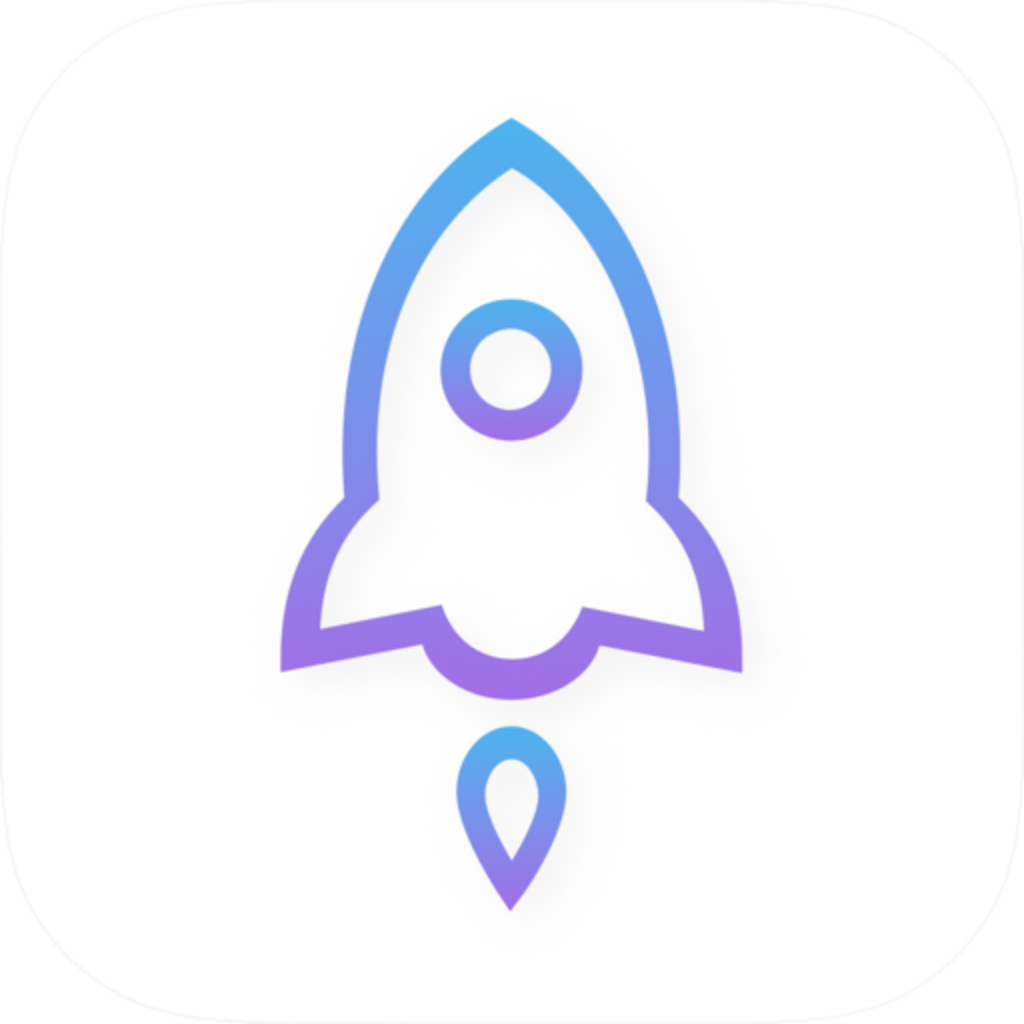
The official icon is a blue-and-purple outlined rocket on a white background, matching the official icon shown on this page. Use the icon as a visual check, but verify it alongside the developer and app ID. Don’t rely on promotional images, search snippets, or the word “official” in an app’s name instead of checking the product page.
APP ID
Check the app ID
932747118
The App Store link on this page contains id932747118. To check a link, view the address shared from the product page and confirm the app ID. The storefront path and title may affect how the listing appears, but the app ID is the fixed identifier used here to locate the product.
After checking all three details, review the current price, compatibility, and purchase confirmation. Also confirm which account you’re using before paying, so you can find the purchase later. Verifying the app and checking whether a connection works are separate tasks: the correct listing confirms what you’re buying, while a working connection depends on your server details, configuration, and current network.
If the page you opened doesn’t match all three details above, return to the App Store link on this page and check again. Price, nicknames in the title, and search ranking are not substitutes for verification. For more details, read How to Identify the Right App Store Listing.
03 / IPHONE
Install and Open on iPhone
Complete the App Store purchase before setting up an in-app connection.
Check compatibility before you buy
Expand the compatibility details on the product page and check whether your iPhone meets the requirements. Use the system requirements shown on the App Store page rather than relying on figures in older articles. If the page says your device or system isn’t compatible, check your device’s current system information and follow the update options provided by the system.
For a first-time purchase, check the price and payment account, then complete verification as prompted by the App Store. Wait for the app to appear on your device. If the download pauses, check the store message, available storage, and network connection first. A purchase confirmation and a completed installation are separate statuses, so check each one.
Check your configuration before connecting for the first time
Once the app is installed, open Home to view the list. Installing the app does not provide connection details. Import a subscription you already have, or enter existing server details in Add Server. Check the address, port, protocol, and authentication details; the app opening successfully doesn’t mean your configuration is complete.
When you connect for the first time, the system may ask for permission to add a VPN configuration. This prompt authorizes the app to create the relevant network configuration on your device; it doesn’t charge you again or generate server details. If you initiated the action in Shadowrocket, authenticate as prompted by the system. If you’re unsure where the prompt came from, cancel and check first.
After granting permission, return to the app and check the selected connection and Global Routing. Use Config for traffic routing rules, Proxy for proxy mode, and Direct for direct mode. Choose the options that match the configuration you’re using. Don’t change several options at once without checking the rules, or it may be difficult to identify what caused a problem.
This page covers purchasing and installation. For importing and testing an existing setup, see the Shadowrocket Usage Guide. If you’ve purchased the app and want to check the purchase record, view your purchased items in your App Store account. Purchase records are managed separately from the server list in the app; deleting a server entry won’t remove the app purchase from your account.
04 / IPAD & COMPATIBILITY
iPad and Other Compatible Devices
Check purchase eligibility with the same account, then verify the configuration on each device.
For iPhone and iPad
Shadowrocket supports iPhone and iPad. After purchasing with an Apple ID, you can redownload the app from the App Store on another eligible device. First make sure Media & Purchases is signed in with the original account, then look under purchased items. Check the App Store page for system requirements and Universal Purchase availability.
On iPad, lists and details may appear differently than on iPhone, and button locations can change with the app or system interface. Use labels such as Home, Config, and Settings to find features rather than relying on screen coordinates from an old image. The product and app ID should be the same on both devices.
Purchase eligibility lets you redownload the app, but it doesn’t guarantee that every setting, subscription, or rule has synced. After installation, check whether your connection is listed in Home and whether the configuration you need appears in Config. If you use a sync feature, check the result instead of assuming every setting has transferred to the other device.
05 / PURCHASE HISTORY
Switch Devices, Reinstall, and Restore Purchases
Restore purchase eligibility first, then restore your own subscriptions, server details, and rules.
Redownload from your original purchase
On the new device, make sure the App Store is using the Apple ID from the original purchase. Check the account under Media & Purchases in particular.
Open the App Store, go to your account, then open purchased items. Depending on your system version, purchases may be grouped by app or purchase history. Follow the layout shown on your device.
Find Shadowrocket, verify the developer and app ID, then tap the redownload button.
After installation, open the app and check whether your configuration has been restored. If it hasn’t, import the subscription or server details you saved.
If the app is still available for the original account to download again, you usually won’t need to pay a second time. If the product page still shows a price, check that the account and purchase history match before approving payment.
Restore purchase records and configuration separately
The App Store records your eligibility to use the app. Subscription URLs, server passwords, rule files, and some app settings are separate data. An empty list after restoring the app doesn’t mean the purchase failed, and you don’t need to buy the app again. Check where you originally saved your configuration and see which details were restored through device migration or sync.
Before switching devices, make sure you can still access your existing configuration details. Subscription URLs and authentication details are sensitive; avoid displaying full addresses, passwords, or QR codes when saving or transferring them. If your connection details have expired, check with your own service provider rather than reinstalling the app to try to extend their validity.
Can’t find a purchase? Check accounts in order
First, identify the account used for the original purchase, then check its purchase history and hidden purchases. The iCloud account on your device may differ from the account used for Media & Purchases, so don’t stop after checking the name at the top of Settings. If you have a payment record but can’t find the app in your list, keep the order details in your account and follow Apple’s account support options for purchase issues.
A change in store region may also affect whether the app is visible or available to redownload. Check the current App Store page and Family Sharing settings to see whether family purchases apply; one person’s purchase history does not automatically grant access to every family member. Whether restoring a personal purchase or checking a family purchase, confirm the applicable terms before continuing on your device.
06 / PURCHASE BOUNDARY
Pricing & One-Time Purchase
The one-time purchase covers the app, not connection services.
Buying the app does not buy a connection plan
Shadowrocket is a closed-source commercial app. Purchasing the app gives you access to its configuration and connection features, but does not include a working server, subscription URL, or connection service period. This site does not provide or sell nodes or subscriptions, or recommend providers. The instructions assume you already have your own subscription or server details.
So, check the App Store purchase and connection availability separately. If the app opens and the purchase appears in your history, the app acquisition is recorded. If a connection fails, check your own configuration, authentication details, service status, and network. Conversely, having a working subscription does not replace purchasing the app through the App Store.
App updates are delivered through the App Store. Automatic updates depend on your device’s App Store settings and current conditions. If needed, check for pending updates in your store account. Updating the app and updating a subscription are separate actions: one updates the client, the other refreshes connection details you already have. Neither replaces the other.
PURCHASE / QUESTIONS
Download & Purchase FAQ
Troubleshoot by checking the store, account, device, and configuration in turn.
Why can’t I find Shadowrocket in the App Store?
First, check the country or region associated with your Apple ID. Shadowrocket is not available in the mainland China App Store. The page language and your device’s current location do not determine your account’s store. If the app is available in your store, check Screen Time content restrictions and your account status, then verify the listing using the product page linked here.
What if the product page opens but the download won’t finish?
Check the App Store message, your account’s payment status, available device storage, and network connection in that order. Then review the product page’s compatibility requirements. If you were charged, check your purchase history first and confirm whether the purchase is complete; don’t repeatedly approve another purchase. Handle purchase and billing issues through your Apple account.
Do I have to pay again after switching devices or reinstalling?
Sign in with the Apple ID used for the original purchase. If the app is still available for that account to download again, you can usually retrieve it from your App Store account and purchased items without paying again. If a price appears, check the account, purchase history, store region, and app ID before proceeding. After restoring the app, check your connection configuration as well.
Can I install it on iPad, and do I need to buy it separately?
Shadowrocket supports iPhone and iPad. After purchasing with an Apple ID, you can redownload the app on another compatible device using the same account. Check the App Store page for system requirements and whether Universal Purchase applies. Redownloading the app does not necessarily sync subscriptions, rules, or other settings.
Is Shadowrocket available for Mac, Apple TV, and Apple Vision?
The compatibility section of the same App Store listing includes Mac, Apple TV, and Apple Vision. Check the listing in the App Store on your target device. System requirements, device compatibility, and Universal Purchase availability are determined by the App Store page.
How should I interpret the English labels in the app?
This handbook keeps interface labels such as Home, Config, Settings, Add Server, Subscribe, and Global Routing in their original English, explaining their functions in the text. Follow the usage guide to import a configuration you already have, then use the settings guide to review the options. Interface layout and display language don’t establish purchase ownership; verify the developer, official icon, and app ID.